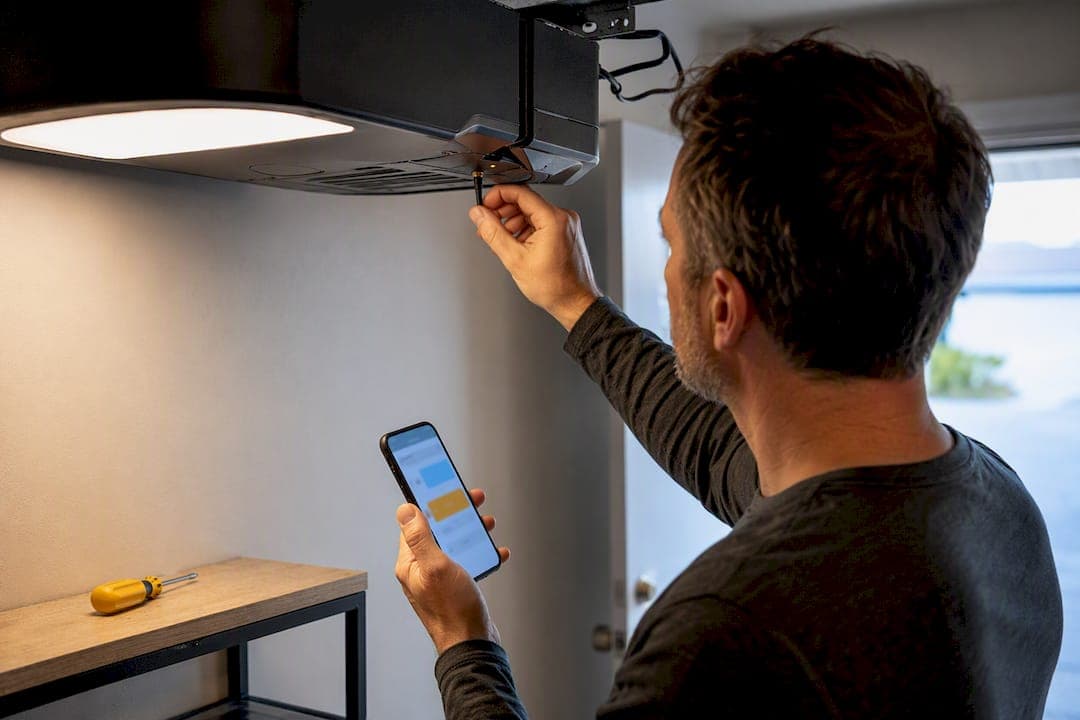
Most opener Wi‑Fi problems clear up with one sequence: power-cycle the router, restart the opener, then re-run the app's setup on your phone's 2.4 GHz connection. Do this in order, not all at once. If the opener still won't pair after that, reset its Wi‑Fi credentials using the Learn or reset button and re-add the device in the app. Still stuck? The problem is usually weak signal in the garage or a router setting, and that's when it's worth improving your Wi‑Fi coverage or calling a technician.
TL;DR:
- Most connection issues are resolved by restarting the router and opener in the correct order before re-adding the device via a 2.4 GHz network.
- The opener's LED signals power, pairing mode, online status, or cloud connection problems, guiding troubleshooting steps.
- Router settings must support WPA2, DHCP, and exclude MAC filtering or firewalls that block outbound connections; weak signals near the garage also cause failures.
- If the wall control, LED, or mechanical components show hardware faults, a technician should be called rather than attempting further Wi‑Fi resets.
- Repeated failed attempts after proper procedures usually indicate hardware issues, like a damaged antenna or Wi‑Fi module, needing professional repair.
Table of Contents
- Before You Begin: What to Check on Your Phone and Router
- What Does the Opener's LED Actually Tell You?
- How Do You Reconnect the Opener Step by Step?
- Is Your Router Setup Causing the Wifi Issue Opener Problem?
- When Should You Call a Technician Instead of Troubleshooting Wifi?
- What Actually Matters When Your Opener Won't Connect
- Get Hands-On Help When Wifi Troubleshooting Hits a Wall
- Sources
- FAQ
Before You Begin: What to Check on Your Phone and Router
A few minutes of prep saves you three failed pairing attempts later. Before you touch the Learn button, get these basics squared away.
- Confirm your opener is Wi‑Fi capable. Look for a myQ logo or Wi‑Fi icon on the unit, or check whether it relies on a separate hub.
- Put your phone on your home Wi‑Fi network, not cellular data, and turn off any VPN.
- Update the myQ app (or whatever app your opener brand uses) to the current version before starting.
- Know your exact Wi‑Fi network name and password. A single wrong character breaks the whole pairing process.
- Grab a ladder and a flashlight. You'll need to see the LED and reach the Learn button on the motor unit.
Pro Tip: If your router broadcasts one combined network name for both 2.4 GHz and 5 GHz bands, create a separate 2.4 GHz-only network temporarily, or disable 5 GHz during setup. Most smart openers only speak 2.4 GHz, and a combined network will often shove your phone onto the wrong band without you noticing.
What Does the Opener's LED Actually Tell You?
The LED on your opener or hub is diagnosing the problem for you. You just have to read it correctly.
- No light at all usually means a power problem. Check the outlet, not the network.
- Blinking blue typically signals the unit is in pairing or setup mode, ready to be added in the app.
- Solid green means the opener is online and talking to the cloud correctly.
- Blinking green often points to a split situation. The opener reaches your router but can't reach the myQ cloud service, which is different from a dead network connection.
Following LED-guided troubleshooting before jumping to a factory reset saves you a lot of wasted effort. If the app shows "offline" but the wall control still opens and closes the door normally, that's a strong sign your Wi‑Fi module has lost its connection while the motor itself is fine. Check the outlet with another device, confirm the antenna hangs straight down and isn't pinched behind metal, and listen for grinding or stuttering during travel. Unusual noise during that check often points to a mechanical issue layered on top of the network one, which is worth flagging separately.
How Do You Reconnect the Opener Step by Step?
Here's the exact order that clears most connection failures without guesswork.
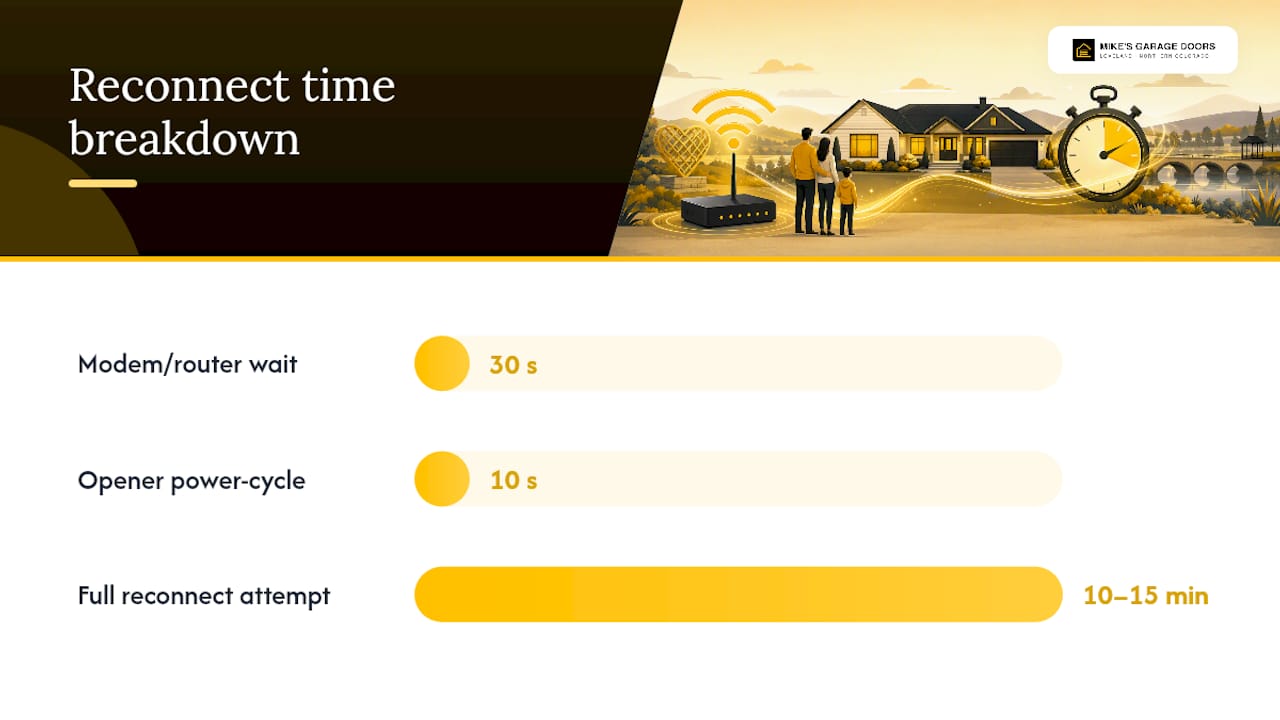
- Restart your modem and router first. Unplug both, wait 30 seconds, plug the modem back in, then the router. Confirm another device, like a laptop, can reach the internet before moving on.
- Power-cycle the opener itself. Unplug it or flip its breaker for 10 seconds, then restore power.
- Trigger Wi‑Fi setup mode on the opener. For most myQ-enabled openers, either hold the black adjustment button until the LED turns off, or press the Learn button on the motor unit two to three times until a blue light flashes or the unit beeps, according to Chamberlain's own setup guide. Hub-based systems have a similar but slightly different reset sequence, so check which flow applies to your model before you start pressing buttons.
- Open the app and choose "Update Wi‑Fi" or "Add Device." iPhone users typically join a temporary myQ setup network first; Android users usually pick their home 2.4 GHz network directly. Type the password carefully. This is where most failed attempts actually go wrong.
- Wait for the LED to turn solid green, then test the door open and closed from the app to confirm the connection actually holds.
Pro Tip: If the app freezes or can't find the opener, force-close and reopen it with Bluetooth and location services turned on, then try one clean reconnect attempt. Mashing the reset button repeatedly while your signal is weak just resets the same failure over and over.
This full sequence, done correctly, takes about 10 to 15 minutes. If you're past 20 minutes and still failing, the issue is almost always your network, not your button-pressing technique.
Is Your Router Setup Causing the Wifi Issue Opener Problem?
If reconnecting looked right on your end but still failed, the culprit is usually sitting in your router settings, not the opener.
Most smart openers only support the 2.4 GHz band, and that's the single most common reason a smart opener not connecting turns into an hour-long headache. If your router uses one shared network name for both bands, band steering can quietly push your phone or the opener onto 5 GHz during setup and block the pairing entirely. The fix is a temporary or permanent 2.4 GHz-only network, separate from your 5 GHz one, at least until pairing succeeds.
Beyond the band issue, run through this router checklist:
- Use WPA2, or WPA2/WPA3 mixed mode. Openers frequently fail to authenticate on WPA3-only networks.
- Confirm DHCP is enabled so the opener can grab an IP address automatically.
- Disable MAC filtering or client isolation, and check that your firewall isn't blocking outbound connections to the myQ cloud.
Weak signal in the garage is the other repeat offender. A mesh node or Wi‑Fi extender placed near the garage fixes more connection drops than any amount of resetting ever will. A practical target is a signal strength around negative 65 dBm or better at the opener's location; anything weaker and you're fighting physics, not a settings error.
Pro Tip: If the app shows your opener as "connected" but the cloud status still says offline, don't reach for a factory reset yet. Check the myQ service status page first, then power-cycle the hub once the internet connection has stabilized. Frequent IP conflicts on busy home networks sometimes call for assigning the opener a static IP instead of relying on DHCP renewal.
When Should You Call a Technician Instead of Troubleshooting Wifi?
Some failures aren't network problems at all, and no amount of app troubleshooting will fix them.
Call a technician when the wall-mounted control button won't run the opener either, when the LED never lights up under any circumstances, when you hear grinding or notice the door struggling partway through its travel, or when multiple devices in the house can't connect to the opener despite a healthy home network. Those point to hardware, not Wi‑Fi.
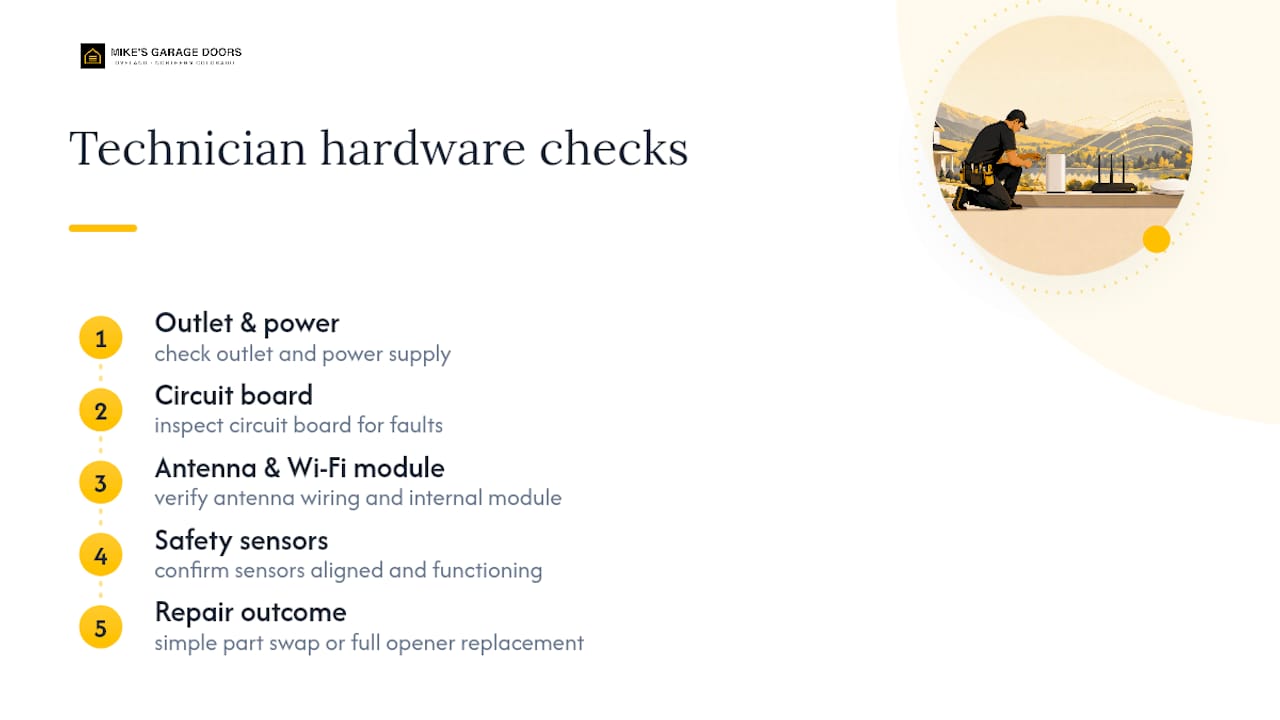
A qualified technician checks the outlet and power supply, inspects the opener's circuit board and antenna wiring, tests the internal Wi‑Fi module itself, and verifies the safety sensors are aligned and functioning. Sometimes the fix is a simple part swap. Other times the whole opener needs replacing.
Mikes Garage Doors Loveland Colorado completes most repairs the same day, backs the work with a transparent, upfront estimate given over the phone, and offers a 10% discount for veterans. If your issue turns out to be a firmware bug or a cloud account provisioning error rather than physical hardware, that's still one worth a call to the manufacturer's support line. But if the wall control is dead or the antenna is damaged, no firmware update fixes that. Only a technician's hands on the unit will.
What Actually Matters When Your Opener Won't Connect
Most guides treat every Wi‑Fi failure like a settings problem, and that's where they go wrong. In practice, the split is roughly even between genuine network misconfigurations and quiet hardware failures wearing a network disguise. A dying antenna or a failing Wi‑Fi module produces the exact same symptom as a bad router setting: the app says offline. Readers who reset their opener five times in a row before checking the wall control are usually chasing the wrong problem.
The advice that actually holds up is this: fix the network side once, cleanly, with the router restarted first and the phone confirmed on 2.4 GHz. Don't repeat the pairing attempt over and over hoping it sticks. If one careful attempt fails after you've addressed signal strength and band settings, that's your signal to stop treating it as a Wi‑Fi issue. The opener itself, the wall control, and the antenna deserve a look before you touch the reset button again. Prioritize the power and hardware check earlier than most troubleshooting guides suggest. It saves you from resetting a perfectly good network ten times over a bad antenna connection.
— Eddie
Get Hands-On Help When Wifi Troubleshooting Hits a Wall
Sometimes the opener isn't the problem. The Wi‑Fi module, antenna, or motor board is, and no amount of app troubleshooting will fix a hardware fault. Mikes Garage Doors Loveland Colorado handles exactly that gap, completing most repairs the same day with a transparent, upfront estimate given over the phone before any technician shows up.
If you've worked through the reconnect sequence, checked your router settings, and the opener still won't hold a connection or won't run from the wall control, that's hardware territory. Mikes Garage Doors Loveland Colorado's technicians diagnose the antenna, circuit board, and Wi‑Fi module directly, and back repairs with solid warranties for homeowners across Northern Colorado. Veterans get a 10% discount on the work. Explore garage door and opener services in Loveland, or call for a same-day estimate before the connectivity issue turns into a bigger repair.
Sources
- How to connect MyQ Wi‑Fi garage door opener to Wi‑Fi home network
- How To Reconnect Chamberlain Garage Door Opener To Wifi
FAQ
My LiftMaster won't connect to Wi‑Fi. What should I do first?
Restart your router and modem, confirm your phone is on the 2.4 GHz network, then put the opener into pairing mode using the Learn or reset button and reconnect through the app. Most reconnections finish in 10 to 15 minutes when done in that order.
How do I force the opener to show a Wi‑Fi login page?
Smart openers don't use a browser login page like public Wi‑Fi. Instead, you trigger setup mode on the unit itself and complete the connection inside the manufacturer's app, not a web browser.
Why does my opener show connected but still won't work?
This usually means the opener reached your router but can't reach the myQ cloud service. Check the service status page, verify your router isn't blocking outbound connections, and power-cycle the hub once your internet connection is stable.
My MyQ opener won't connect to Wi‑Fi. How do I fix it?
Trigger Wi‑Fi setup mode by holding the black adjustment button until the LED turns off, or pressing the Learn button two to three times until you see a blue flash. Then reconnect through the app on a 2.4 GHz network.
When does a Wi‑Fi problem actually mean I need a technician?
If the wall control won't run the door, the LED never lights up under any condition, or you hear grinding during travel, that points to hardware rather than Wi‑Fi. Local garage door repair technicians can inspect the antenna, board, and Wi‑Fi module promptly.